
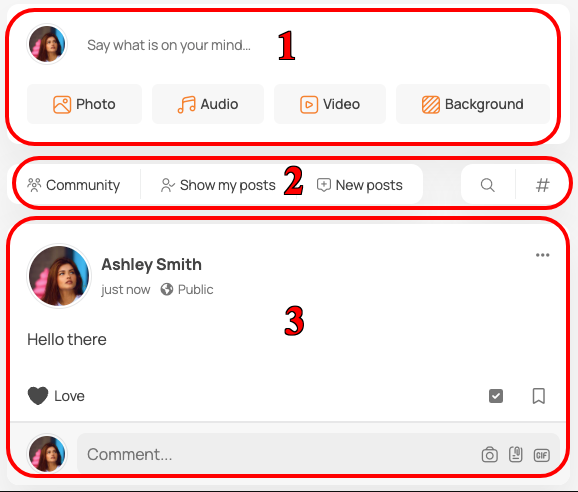
Activity stream is the centralized place for users to see everything that is going on in the community.
It can be set as a home page for your site by going in to WP Admin -> Settings -> Reading and selecting the static page, then choosing Activity stream page as a home page.
This setting will change the home page of your site and display the activity stream for users that are landing to your top level domain (ex. www.domain.com)
Activity Stream is Privacy Aware #
All of the items posted in activity stream respect the privacy option attached to them.
For example, if someone post something that is visible only to their friends, users who are not friends with the poster will not see that content.
Activity Stream Areas #
The activity stream is divided into three (3) areas
- Postbox
- Filters
- Stream Items
Postbox #
Postbox is the most commonly used feature of the community as it allows users to post content.
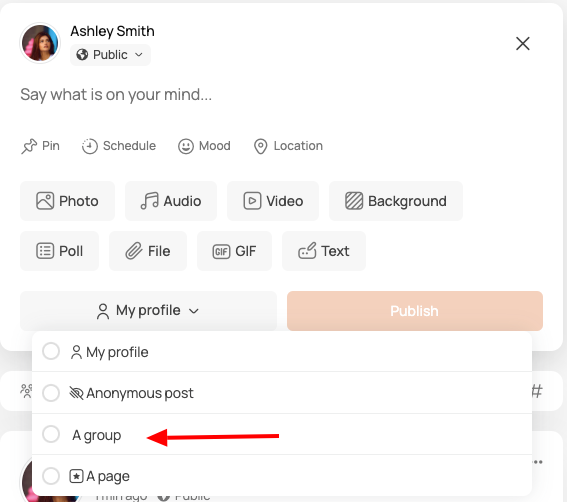
It also allows selecting the privacy for the posted item, choosing a mood that will be displayed in the stream item, or scheduling posts for the later date.
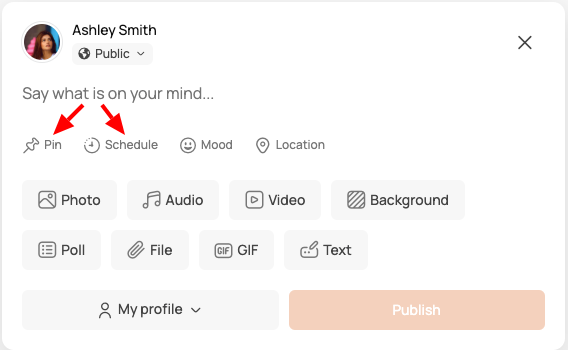
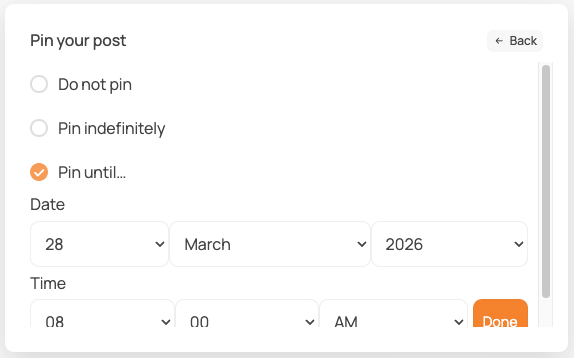
Pin a stream post when publishing or scheduling is available as well. Posts can now be pinned until a specific time and date, after which the posts will unpin themselves. It’s possible to pin posts directly from within the postbox, including “pin until…” feature.
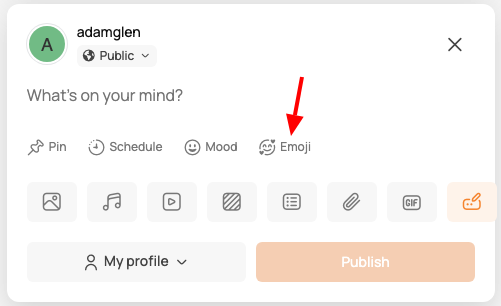
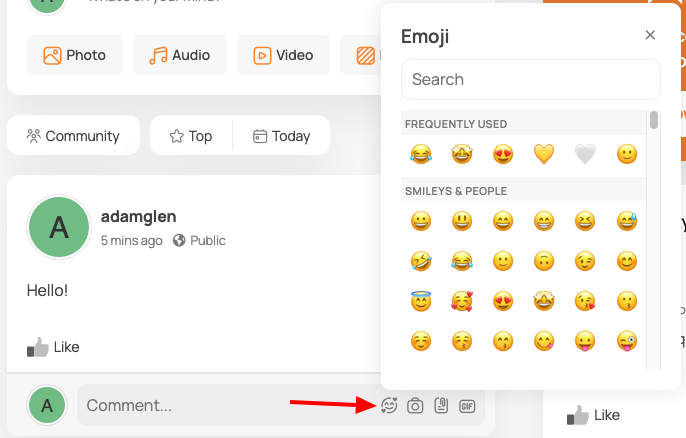
Emoji picker – for posts, and also for replies and comments:
Filters #
Filtering the activity stream to find the exact posts you’ve been looking for is possible with four (4) different options
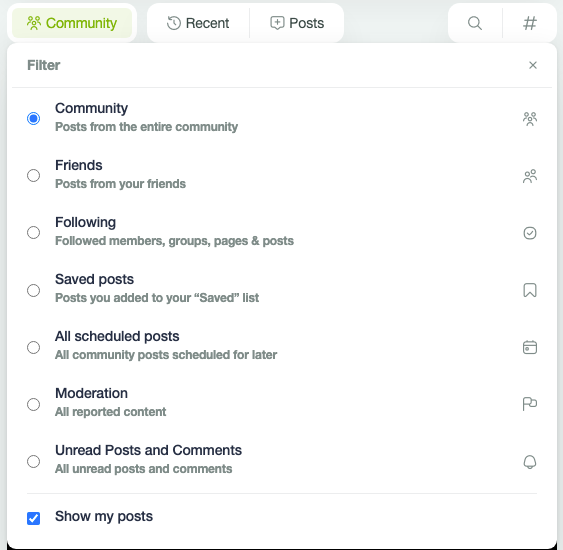
1. Default stream filter:
- Community – display all community stream items that viewer have permissions to see.
- Friends – display posts from your friends.
- Following (optional, requires Friends Plugin) – display stream items from followed users.
- Saved posts – the filter will display saved posts. Saved posts must be enabled in PeepSo settings.
- All scheduled posts – display posts scheduled for the later date.
- Moderation – to see all reported content. If “Reporting” is enabled in WP Admin > Peepso > Configuration > Moderation, agents will see the additional “Moderation” filter here.
- Unread Posts & Comments – helps users quickly catch up on new activity by displaying posts and comments they haven’t seen yet.
If “Remember the last selected stream filter” is enabled in WP-Admin > PeepSo Configuration > Navigation & Filters, any changes made by users to the above settings are saved (only in your current browser). Otherwise, it always resets to the configured default.
- Show my posts – you can choose whether to show or hide your posts. This filter applies to all posts in the community stream, groups, and profile.
Any changes made to the “Show/hide my posts” settings on a profile, group, or community stream are also saved for all other streams (only in your current browser).
2. “Sort by” filters:
- Recent – to filter by the most recent posts or posts & comments.
- Top – to show the most engaged content for: today, this week, this month, this year, or all time.
- Hot – to display the trending content in the selected period of time.
- Only pinned posts – to show only posts that are pinned.
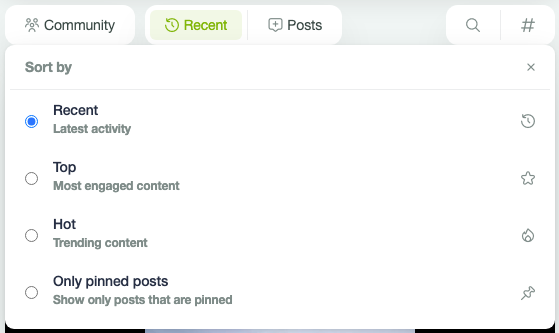
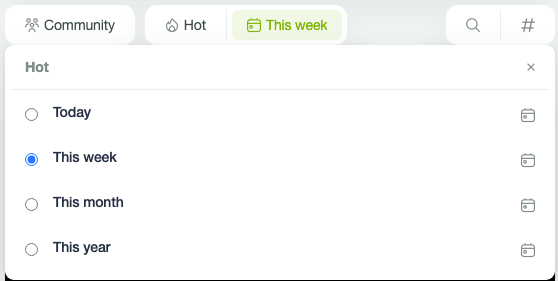
Any changes made to “Sort by” settings on a profile, group, or community stream are also saved for all other streams (only in your current browser).
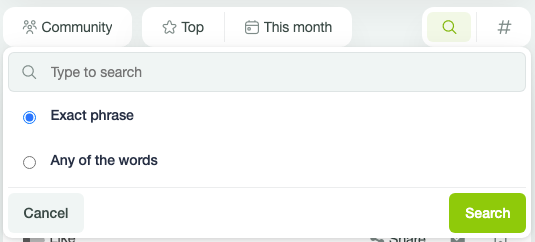
3. Search by keyword
If you wish to search activity streams by certain keyword, you can do that in third filter.
Available options are:
- Exact phrase – will search only for exact phrase you typed.
- Any of the word – will search for any word you typed.
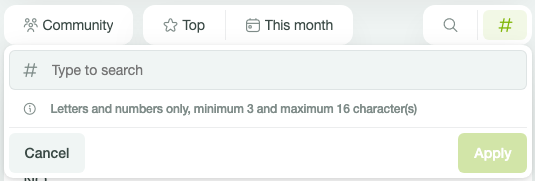
4. Filter by #Hashtags
Allows searching the stream items for the posted hashtags.
Stream Items #
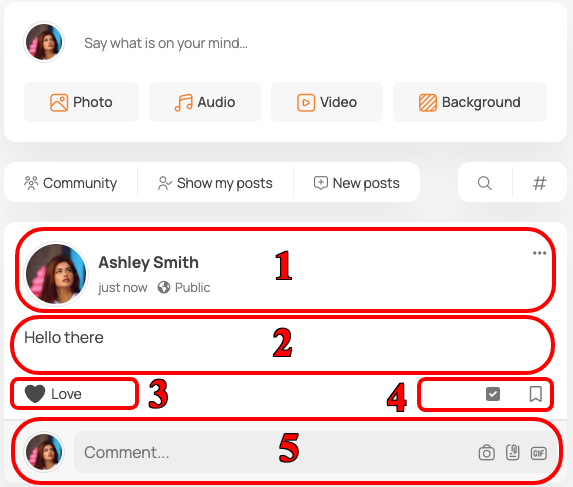
Every stream item is made out of four elements
- Activity Header – Contains user avatar, name, action title and the mood, option to adjust the privacy, timestamp which is actual link to the single stream view and dropdown options to edit or delete the stream item.
- Activity Content – Contains the content of activity. It may also include WordPress Embeds if you post a link to the stream.
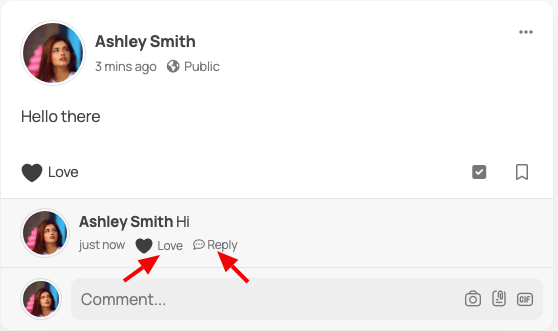
- Reactions Bar – Displays all the reactions and allows for making new ones.
- Follow / Save options – Subscribe or unsubscribe post for notifications or save the post if Saved posts option is enabled.
- Comments Section – This is where comments are posted. Users can reply and also react to comments.
Stream Post dropdown options #
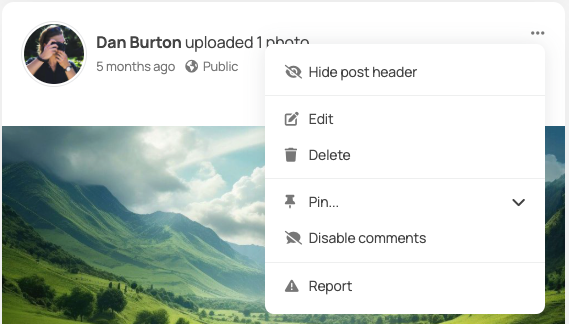
Dropdown menu for the stream post contains the following options:
- Edit post – option available for the post creator, community administrators; group owners, managers and moderators
- Delete post – option available for the post creator, community administrators; group owners, managers and moderators
- Pin to top – option available for community administrators; group owners, managers and moderators
- Disable comments – option available for community administrators; group owners, managers and moderators
- Report post – option available for all users.