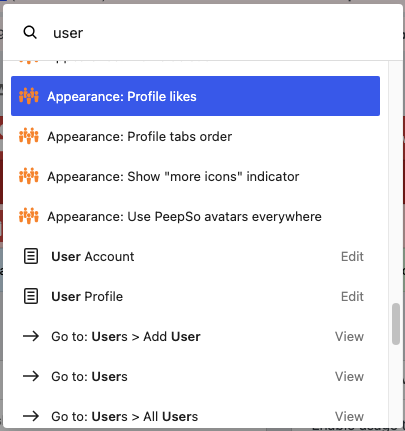

The WordPress Command Palette offers a quick way to navigate and manage your entire site. It is available when you view the back end of your website.
Every PeepSo setting is now searchable from the native WordPress Command Palette, from any admin page — typing a setting name jumps straight to the right tab and field.
To access the Command Palette, use the keyboard shortcut “Cmd+k” on Mac or “Ctrl+k” on Windows, or click the relevant button in the WP admin bar:

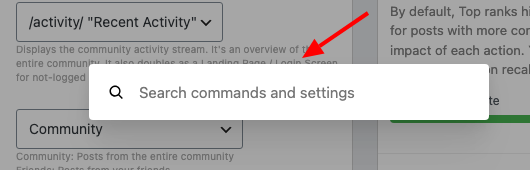
You will see the search box, as shown below:
Type in what you are looking for. In this example, “Avatar”:
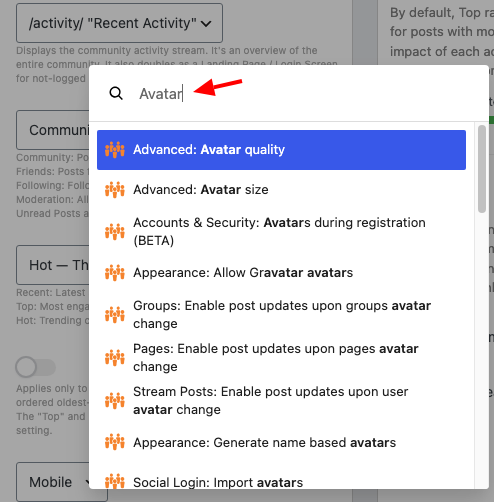
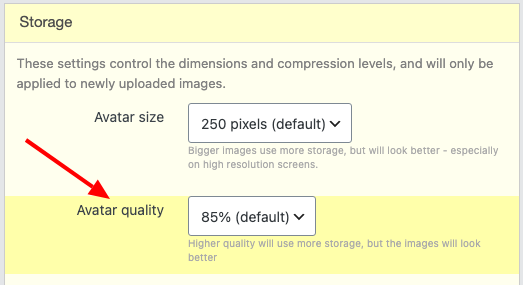
You will see a list of all relevant settings. Choose the exact one that you are looking for, in this example, “Avatar quality”. You will be redirected to the page with the respective PeepSo settings and the corresponding highlighted field:
PeepSo-related search results are always displayed first/at the top of the list. At the bottom, you will find results relating to general WordPress and 3-rd party plugins: